

Meta AI
Free AI assistant for chat, ideas, and daily tasks
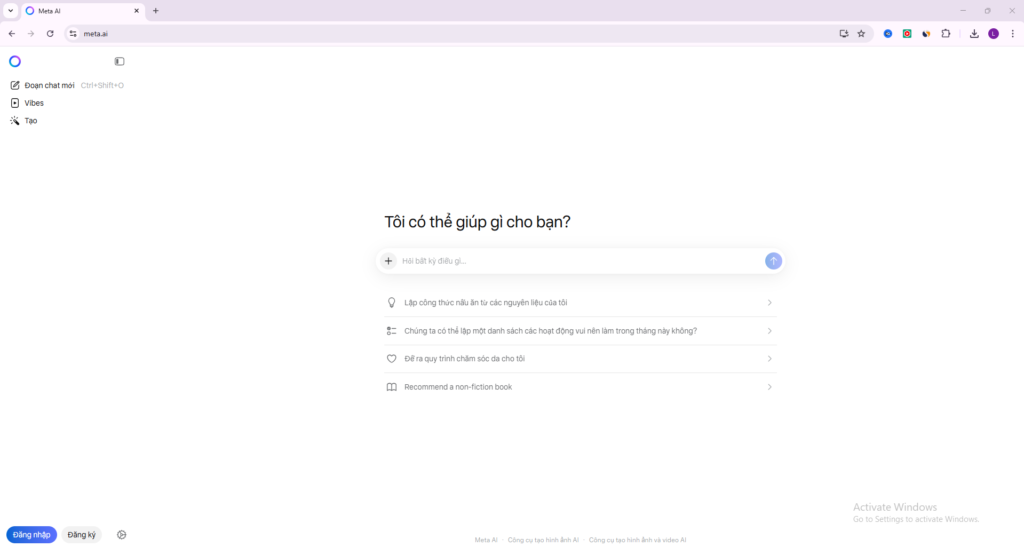
Meta AI is a free AI assistant from Meta that helps with chat, writing, ideas, research, image creation, and everyday tasks. It is useful for users who want an easy AI experience on the web and across Meta’s apps.
Overview
Meta AI is a general-purpose AI assistant from Meta designed to help with answers, writing, research, ideas, image creation, and everyday tasks across Meta’s apps and web experiences.
What it can do:
- Answer questions in a conversational chat format
- Help with writing, ideas, and everyday tasks
- Support voice conversations in supported experiences
- Understand photos and answer questions about them
- Create and edit AI-generated images in supported regions and products
Who should use it:
Students, creators, social media users, office users, and general users who want a free AI assistant connected to Meta’s apps and ecosystem.
Things to note:
Features can vary by country, language, platform, and product surface. Some tools may be available on meta.ai, in the Meta AI app, or inside WhatsApp, Instagram, Messenger, and Facebook depending on rollout and region.
Final quick verdict:
Meta AI is a practical everyday AI assistant for users who want free chat, creative help, and easy access inside Meta’s apps and web tools.
How to Use
1. Visit the official Meta AI website or open Meta AI through one of Meta’s supported apps, such as Facebook, Instagram, Messenger, or WhatsApp where available.
2. Sign in if required, especially if you want a more connected experience across Meta products.
3. Start with a simple chat prompt, such as a question, writing request, planning task, or idea-generation request.
4. If your version supports voice, tap the voice option and speak naturally to interact with Meta AI hands-free.
5. For basic productivity, ask Meta AI to summarize information, draft messages, brainstorm ideas, explain a topic, or help organize a small task.
6. For creative use, try asking Meta AI to generate an image, suggest visual ideas, or edit an image if that feature is available in your region or app.
7. If you are using Meta AI inside a chat app, continue refining your prompt with follow-up questions until the answer becomes more useful and specific.
8. If your version supports sharing photos, upload or share an image and ask Meta AI what it sees, what it means, or how to improve or change it.
9. Review the output carefully, especially for factual or important tasks, and adjust your prompt when you want a better result.
10. Once you understand the basics, use Meta AI regularly for quick answers, writing help, creative support, and everyday planning inside the Meta ecosystem.
Screenshots