

Kling 3.0
AI video generator for cinematic short-form content
Kling 3.0 is an AI video generator that helps users create short cinematic videos with stronger motion quality, audio-visual output, and more advanced control. It is useful for creators who want higher-quality AI video generation for creative or marketing work.
Overview
Kling 3.0 is an AI video generation tool designed to help users create cinematic short videos with stronger motion quality, native audio-visual output, and more advanced control over generated scenes.
What it can do:
- Generate AI videos from prompts
- Produce audio-visual output in supported workflows
- Create longer clips than earlier generations
- Support motion control and more flexible scene handling
- Help creators generate polished short-form visual content
Who should use it:
Creators, video experimenters, marketers, and visual storytellers who want stronger motion quality and more advanced control than basic AI video generators.
Things to note:
Kling works on a credit and subscription model. Free usage exists, but stronger output limits and more serious production workflows depend on paid access.
Final quick verdict:
Kling 3.0 is a strong AI video tool for users who care about motion quality, cinematic output, and more control in short-form AI video generation.
How to Use
1. Visit the official Kling AI website and sign in or create an account.
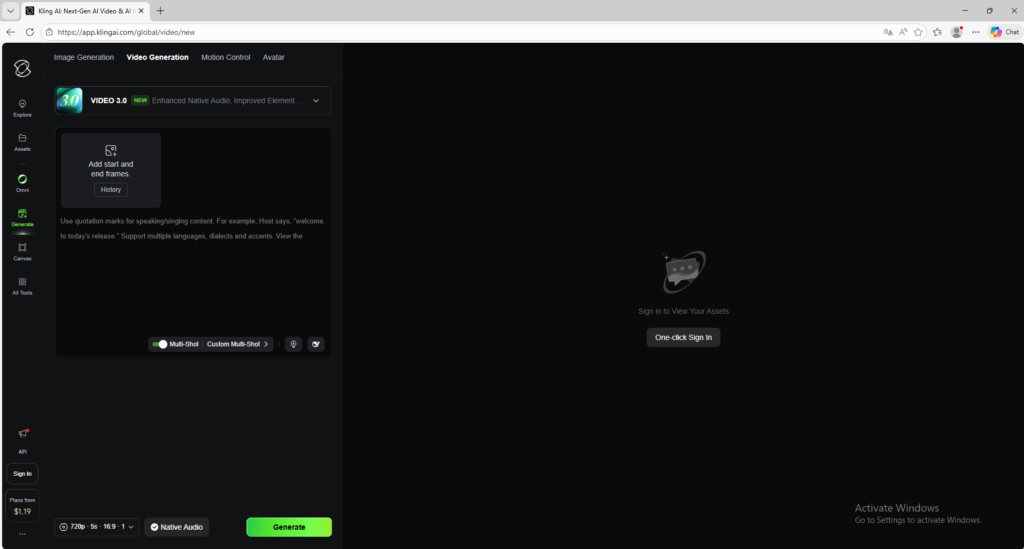
2. Open the video creation area and make sure you are working in the Kling video workflow.
3. Start with a simple project first, either by entering a text prompt or by using an image as a starting point if that option is available in your chosen mode.
4. Write a prompt that clearly describes the subject, action, environment, lighting, camera movement, and mood.
5. If your workflow includes motion control or extra scene controls, set them carefully so the output matches the movement you want.
6. Choose the duration, aspect ratio, and other available generation settings before submitting the job.
7. Generate a first version and review the result for motion stability, prompt accuracy, and visual quality.
8. If the video looks wrong, shorten and simplify the prompt or change one setting at a time instead of changing everything at once.
9. Save the best versions and compare outputs so you can learn which prompt style works best in Kling 3.0.
10. Once you get a strong result, download the clip and reuse the prompt structure for future creative work.
Screenshots