

Le Chat by Mistral AI
AI assistant for chat, research, and productivity
Le Chat by Mistral AI is an AI assistant that helps with chat, research, writing, image generation, and everyday productivity. It is useful for users who want a flexible AI tool for both personal tasks and professional work.
Overview
Le Chat by Mistral AI is a general-purpose AI assistant designed to help with chat, research, writing, image generation, and everyday productivity.
What it can do:
- Answer questions in a conversational format
- Search and research information
- Help with writing, summarizing, and rewriting
- Generate images in supported workflows
- Organize work through projects, memories, and connected tools
Who should use it:
Students, creators, office users, researchers, and professionals who want a flexible AI assistant for both personal and work-related tasks.
Things to note:
Some features, higher limits, and advanced workflows depend on the plan you use. The exact experience can also vary between the web app, mobile app, and enterprise setup.
Final quick verdict:
Le Chat is a strong everyday AI assistant for users who want fast chat, research support, and practical productivity features inside the Mistral ecosystem.
How to Use
1. Visit the official Le Chat website.
2. Sign up or log in with your account.
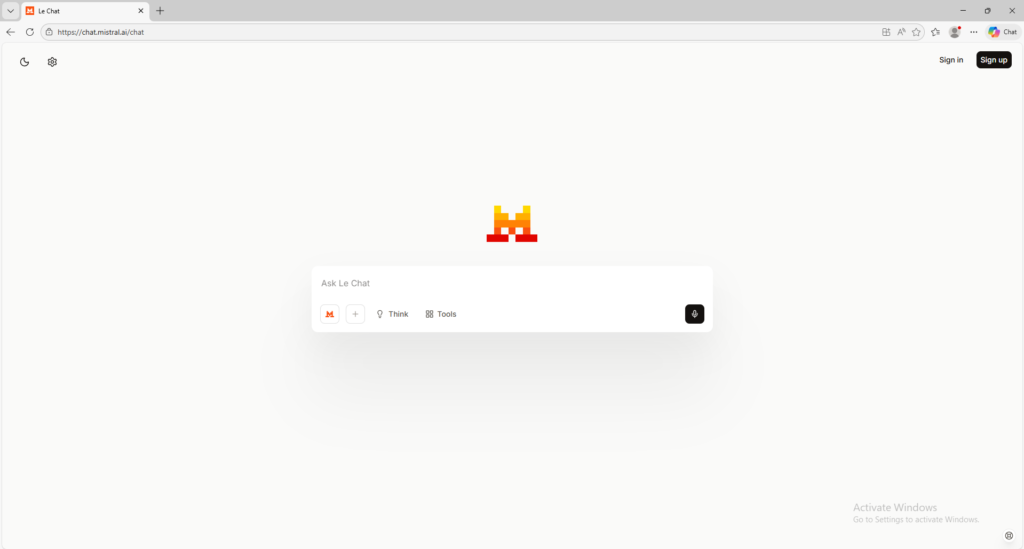
3. Start a new chat from the main interface.
4. Enter a simple prompt first, such as a question, writing request, summary task, or idea-generation request.
5. If you need deeper answers, keep refining your prompt with follow-up questions so Le Chat can narrow the result.
6. Use it for practical tasks like summarizing text, rewriting content, explaining a topic, planning work, or brainstorming ideas.
7. If your version supports search or deep research features, turn those on when you need broader and more structured answers.
8. If you want creative output, try asking it to generate or iterate on an image where supported.
9. Save useful conversations into projects or use memory-related features if they are available in your plan.
10. Review the response carefully and continue the conversation until the result is clear, accurate, and usable for your task.
Screenshots