

InVideo
AI video platform for prompt-to-video creation and editing
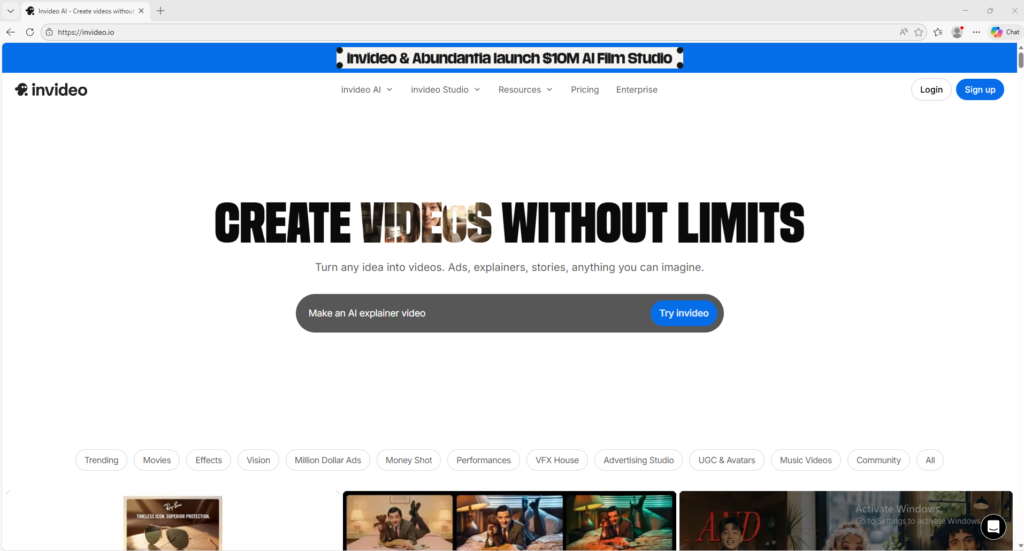
InVideo is an AI video platform that helps users turn prompts and scripts into videos with clips, voiceovers, subtitles, music, and transitions. It is useful for marketers, creators, and beginners who want a practical all-in-one video workflow.
Overview
InVideo is an AI video creation platform designed to help users turn prompts, scripts, and ideas into ready-to-publish videos with voiceover, subtitles, stock media, music, and editing tools.
What it can do:
- Generate videos from text prompts
- Automatically create scripts and scene structure
- Add clips, subtitles, music, transitions, and voiceovers
- Help users create marketing videos, explainers, ads, and social content
- Support both fast AI generation and more hands-on editing workflows
Who should use it:
Marketers, creators, founders, agencies, educators, and beginners who want a practical AI video workflow without needing advanced editing skills.
Things to note:
The free plan is useful for testing, but stronger generative capabilities, more credits, and higher-end workflows depend on paid access. InVideo is especially useful when you want a prompt-to-video workflow that also gives you editing control afterward.
Final quick verdict:
InVideo is a practical AI video platform for users who want prompt-based video creation plus editing, subtitles, music, and stock-media support in one place.
How to Use
1. Visit the official InVideo website and create an account or sign in.
2. Decide whether you want to start from a simple prompt, an existing script, or a video idea you want the AI to structure for you.
3. Open the AI video creation workflow and enter a clear prompt. For the best first result, describe the topic, goal, audience, tone, and type of video you want, such as an explainer, promo, ad, tutorial, or social clip.
4. If your video needs a specific format, set the aspect ratio first, for example vertical for short-form social media or landscape for YouTube and websites.
5. Let InVideo generate the first draft. The platform can automatically create a script, suggest scenes, add stock media, apply subtitles, and include music or voice elements depending on the workflow you choose.
6. Review the draft scene by scene. Check whether the script matches your intent, whether the visuals are relevant, and whether the pacing feels right for your audience.
7. Edit the parts that need improvement. You can usually rewrite the script, replace clips, adjust timing, refine subtitles, swap music, or change voiceover settings if the first version feels too generic.
8. If your goal is a marketing video, tighten the hook at the beginning, keep scenes short, and make sure the call to action appears clearly near the end.
9. Preview the full video before exporting. Pay attention to subtitle accuracy, music balance, voiceover clarity, and whether the transitions feel smooth.
10. Export only after the draft feels clean and usable. Save strong prompt structures and editing choices so future InVideo projects become faster and more consistent.
Screenshots